

Connect HubSpot
HubSpot integration is available when your customer workspace has it enabled. It helps sales teams keep CRM records aligned with StoreScout store context.
Prerequisites
Section titled “Prerequisites”- A HubSpot account your organisation administers
- A StoreScout role allowed to connect integrations (usually Admin or Analyst)
- HubSpot in the app navigation (if missing, ask StoreScout or your workspace owner — feature may be off)
Connect
Section titled “Connect”- Sign in to StoreScout.
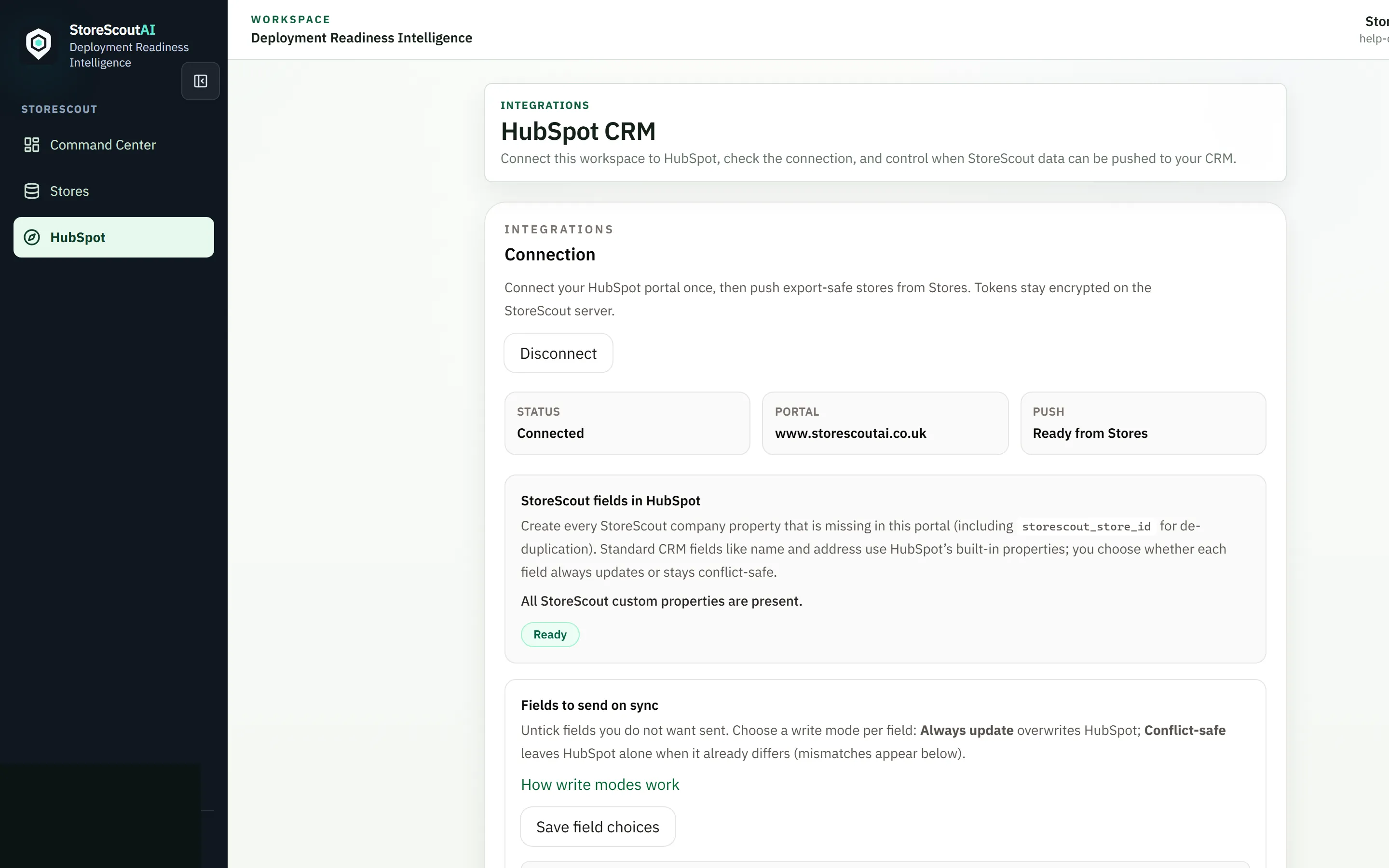
- Open HubSpot in the main navigation (or Integrations → HubSpot).
- Start Connect HubSpot and complete the HubSpot OAuth consent screen.
- Confirm the integration shows as connected.
- Optionally review field pack / write-mode preferences if your workspace exposes them (which CRM properties StoreScout may write).
Only connect a HubSpot portal your company is authorised to use.
Push store context from Stores
Section titled “Push store context from Stores”When connected, select stores in Stores and use Push N to HubSpot on the selection bar (batch size is capped in-product — currently 100 stores per push; larger sets must be batched).
Good practice:
- Push qualified stores, not entire raw territories
- Prefer after enrich when priority/evidence matter to your CRM process
- Keep HubSpot lifecycle stages owned by your CRM process
- Avoid duplicating the same store with conflicting keys — follow on-screen identity guidance
- Prefer controlled push over ad-hoc CSV export when that matches process
Disconnect
Section titled “Disconnect”Admins can disconnect HubSpot from the same integrations page when rotating portals or ending a pilot. Disconnecting does not delete history already written inside HubSpot.
Troubleshooting
Section titled “Troubleshooting”| Issue | What to try |
|---|---|
| No HubSpot nav item | Feature may be off for your customer or role; demo-focus mode may hide secondary nav |
| OAuth fails | Allow pop-ups; confirm you are a HubSpot super admin / allowed installer |
| Push disabled / max message | Reduce selection size; re-check connection status |
| Push fails | Re-check connection; retry once; report a problem with store id and time |