

Export safely
Exports leave the controlled workspace. Treat them as sensitive business data.
Before you export
Section titled “Before you export”- Confirm Search set, filters, or Saved list match the intended campaign.
- Confirm you are allowed to export (role + customer rules — viewers are often blocked).
- Prefer the smallest selection that meets the need.
- Know where the file will be stored and who will receive it.
- Enrich first if your process requires fresh evidence on those rows.
How to export from Stores
Section titled “How to export from Stores”- In Stores, filter to the working set.
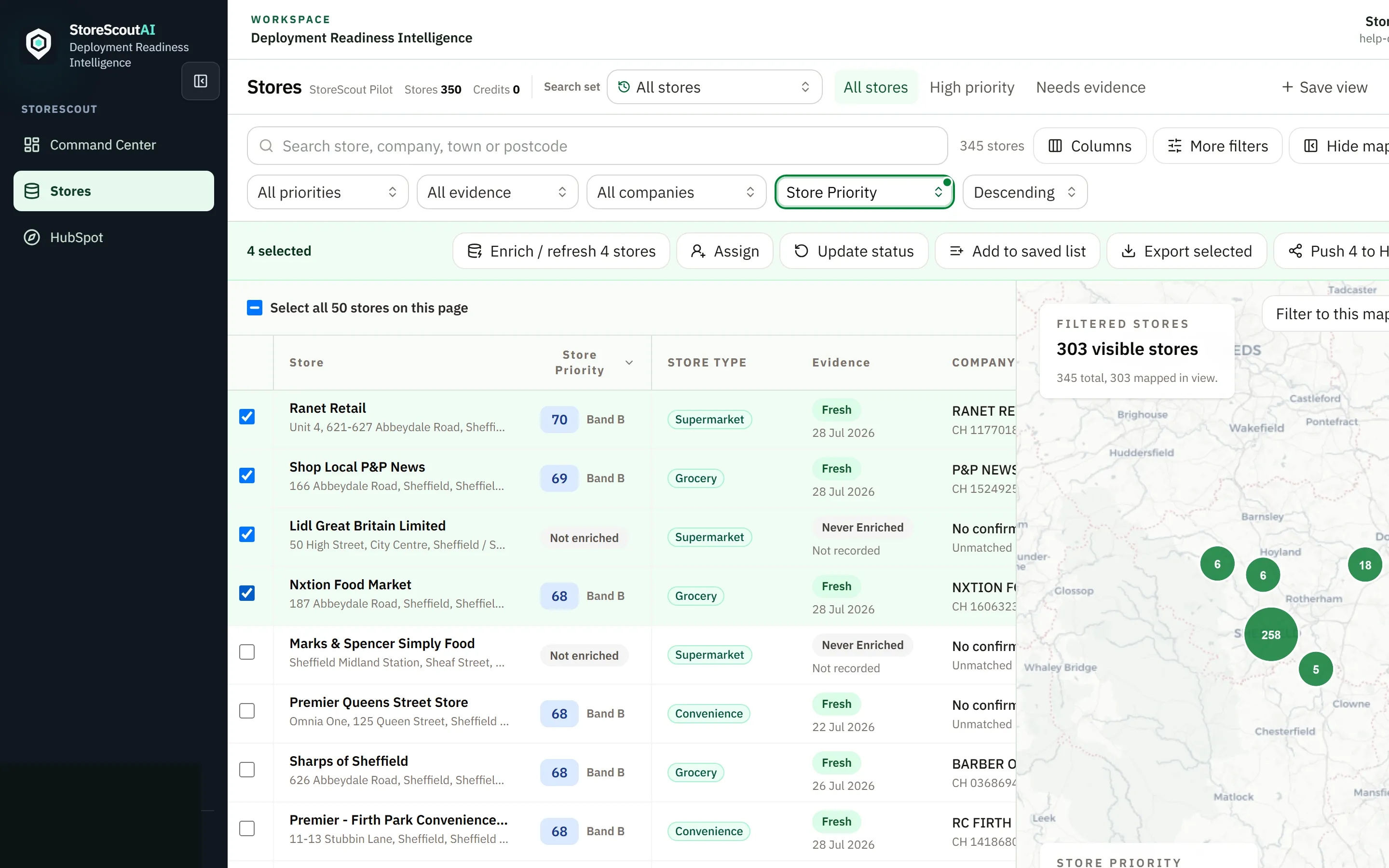
- Select the rows to export (or Select all matching when the green bar offers it and the total is correct).
- Click Export selected on the selection bar.
- Confirm scope text on screen carefully — export the selection you meant, not a leftover filter.
- Download only over a trusted device and network.
Some workspaces also offer list- or run-scoped export paths; always read the on-screen scope.
Buyer-safe habits
Section titled “Buyer-safe habits”- Do not export demo data into live CRM as production truth.
- Strip or avoid columns your recipient does not need (exports are already configuration-specific).
- Follow your organisation’s retention rules for downloaded files.
- If HubSpot push is enabled, prefer controlled Push to HubSpot over ad-hoc CSVs when that matches process — see Connect HubSpot.
If export is blocked or empty
Section titled “If export is blocked or empty”See Export problems.
Credits and limits
Section titled “Credits and limits”Export itself may be free while pre-export enrichment uses credits. Behavioural rules: Credits and usage. Public monthly prices: Plans and pricing. Unit rates stay unpublished.