

Map and list together
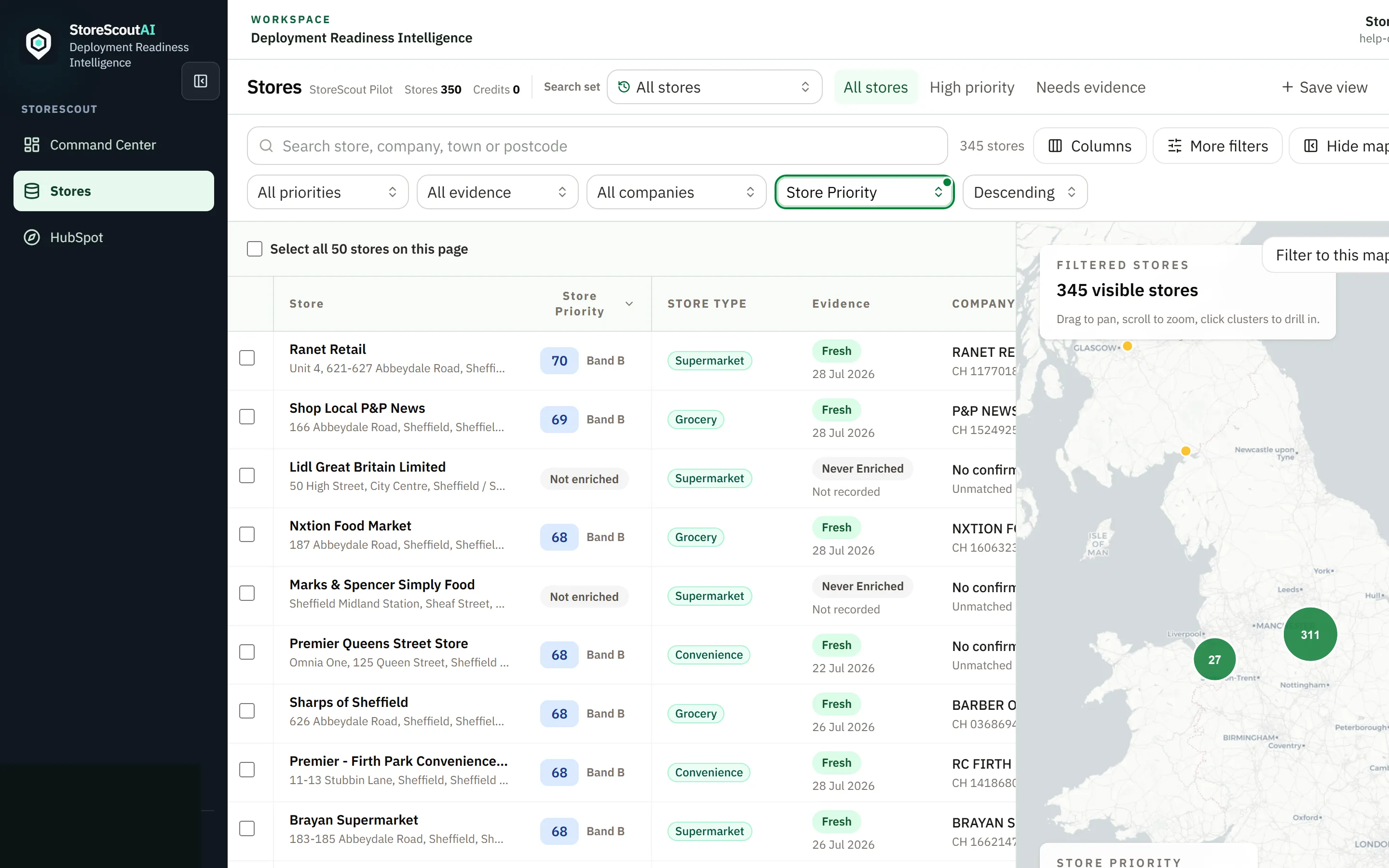
When the map is enabled, Stores is a single workspace: the table and map share the same filtered set of entitled stores.
Why use both
Section titled “Why use both”| Table | Map |
|---|---|
| Fast scanning, sort, bulk select | Geography, clusters, travel reality |
| Dense attributes | Spot gaps between sites |
| Export / enrich selection | Visual shortlist |
Layout modes
Section titled “Layout modes”Use the layout controls in the filter bar (labels may vary slightly):
- Split — table and map side by side when the Stores pane is wide enough
- Table — hide map; name still opens preview
- Map — full map; return to table when needed
Clicks that matter
Section titled “Clicks that matter”| Action | Result |
|---|---|
| Click row body (not a button) or press Enter on a focused row | Map flies to the store (street-level zoom when coordinates exist) |
| Click store name | Opens a preview (top-level figures). Stay on Stores. |
| Eye control | Opens the full store record |
| Click map marker | Opens the same preview |
| Show on map (mobile / preview) | Focuses the map without leaving Stores |
Stay in sync
Section titled “Stay in sync”- Apply filters and optional Search set first.
- Confirm the store count matches what you expect.
- Pan/zoom the map — markers should reflect the filtered set.
- Use Filter to this map area (when shown) to tighten the table to the viewport — free, not a paid Find stores run.
If the map is blank but the list has rows (or the reverse), see Empty results or map issues.
Practical planning pattern
Section titled “Practical planning pattern”- Filter to a town, chain set, or priority band.
- Click through rows to orient on the map.
- Select stores and enrich, assign, or export as needed.
- Export only the agreed selection.