

Store profile and evidence
A store record is the full picture of one outlet: identity, location, priority, evidence, contacts, and workflow. Start from Stores — preview for a glance, then open the record to work it.
Open a store
Section titled “Open a store”Two surfaces. Clicking the row body is not a third one.
| Action | What opens |
|---|---|
| Click the store name | Preview — lightweight modal with top-level figures (priority band, evidence freshness, company, contacts). Stay on Stores. |
| Click a map pin | The same preview. Browse stays on Stores. |
| Eye control, or Open store record from the preview | Full store record — the only place to work the store. |
Clicking the row body (not the name, not the eye) flies the map to that store — it does not open preview or the record. See Map and list together.
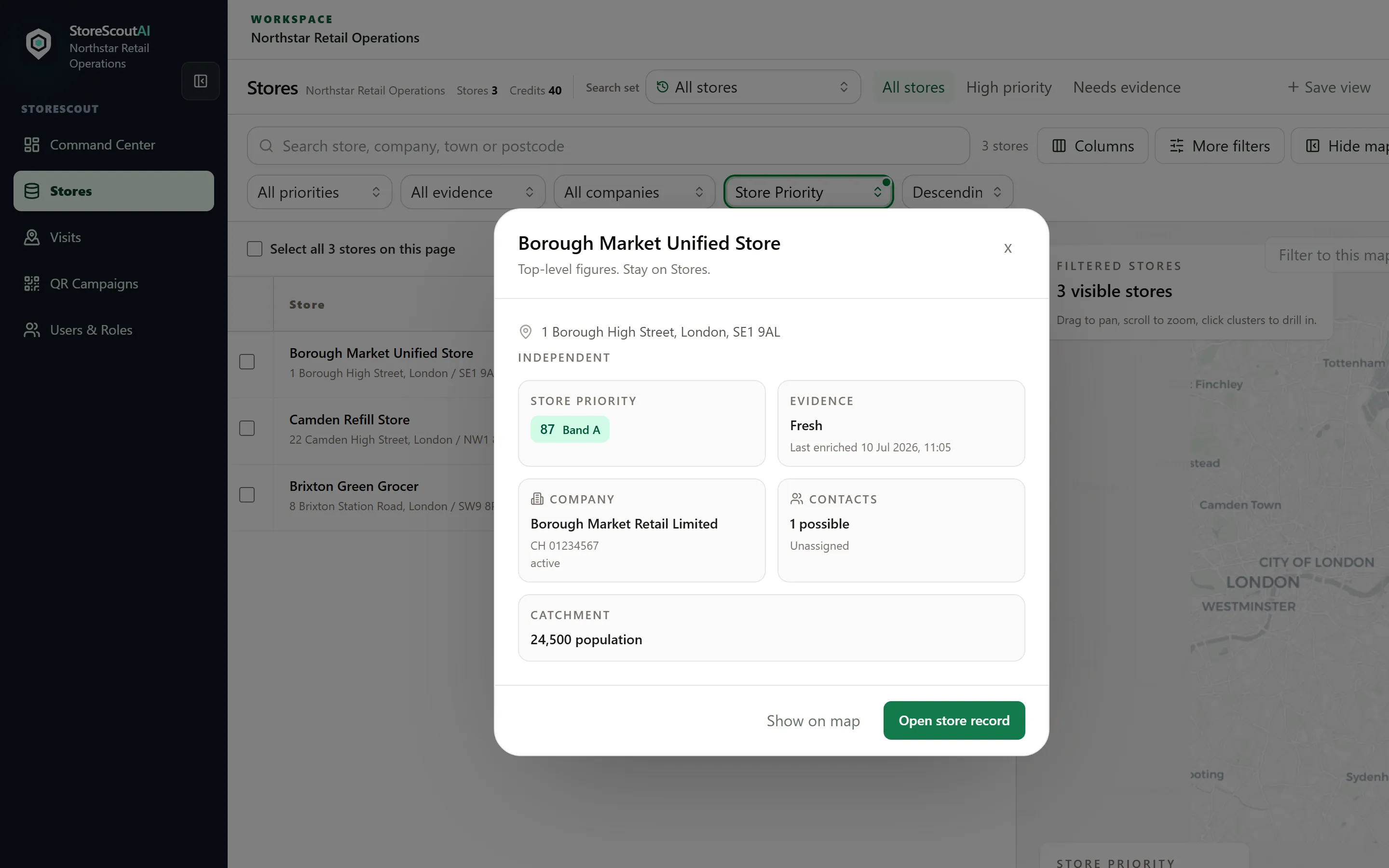
Preview (quick read)
Section titled “Preview (quick read)”Typical figures:
- Trading name, fascia, address
- Store Priority score and band (A–D) when the store has been enriched — otherwise “Not enriched”
- Evidence status: Never enriched, Fresh, Stale, or Failed refresh, plus last enriched time
- Company match (name, company number when present)
- Contact counts or pointers your workspace shows
Footer:
- Show on map — when the map is in this layout. Secondary. Focuses the map without leaving Stores.
- Open store record — the one primary. Opens the full record.
Preview has no tabs, Street View, or RVM.
Full store record
Section titled “Full store record”The record is the workplace. After the header it starts with a next task, then a compact identity strip (priority, evidence, company match, owner), then the sales brief. Street View and RVM sit further down as site evidence — not the first screen.
| Area | Use it for |
|---|---|
| Next task | The next action: enrich, review the company match, assign an owner, or update follow-up. |
| Identity and sales brief | Priority, evidence, company, contacts. |
| Street View | Site context, with consent. Load when you need it. |
| RVM | Assessment panels when that module is enabled. |
| Follow-up | Assign an owner and the next call on this page. |
RVM assessment, site brief, and photo evidence panels appear when those modules are enabled for your customer.
Evidence good practice
Section titled “Evidence good practice”- Prefer fields and sources shown in-product over unverified spreadsheets.
- If something looks wrong, run Enrich / refresh on a shortlist (selection bar), or flag via Report a problem with the store id from the URL.
- Do not include Google Street View or other map-provider imagery in bug-report screenshots — see Privacy and Street View.
Priority on the profile
Section titled “Priority on the profile”Store Priority helps your team order attention. It is not:
- A legal determination under DRS rules
- A guarantee of commercial outcome
- A substitute for on-site judgement
Stores that have never been enriched will not show a meaningful priority band until you refresh evidence.