

Enrich and refresh data
Enrich / refresh strengthens store evidence (company match, priority inputs, contacts, site context where licensed) so your team works from fresher data. It runs from the Stores table, not from a separate Discover/Enrich page.
When to enrich or refresh
Section titled “When to enrich or refresh”- Before a buyer conversation or field visit
- When evidence shows Never enriched, Stale, or Failed refresh
- When an address, ownership, or trading status looks wrong
- Before export, if your process requires a fresh pack
How to run it
Section titled “How to run it”- Open Stores.
- Filter to the shortlist you actually need (search set, priority, evidence filters).
- Select one or more rows (checkboxes). Optionally Select all matching if the bar offers it and the total is intentional.
- In the green selection bar, click Enrich / refresh N stores.
- Confirm if the product asks — enrichment uses credits when configured.
- Watch the operation banner at the top of Stores for progress (store counts and/or check progress). Stay on the page or return later; completed runs update evidence on the rows.
You can also refresh from some store-detail actions when your role allows — selection bulk is the usual pilot path.
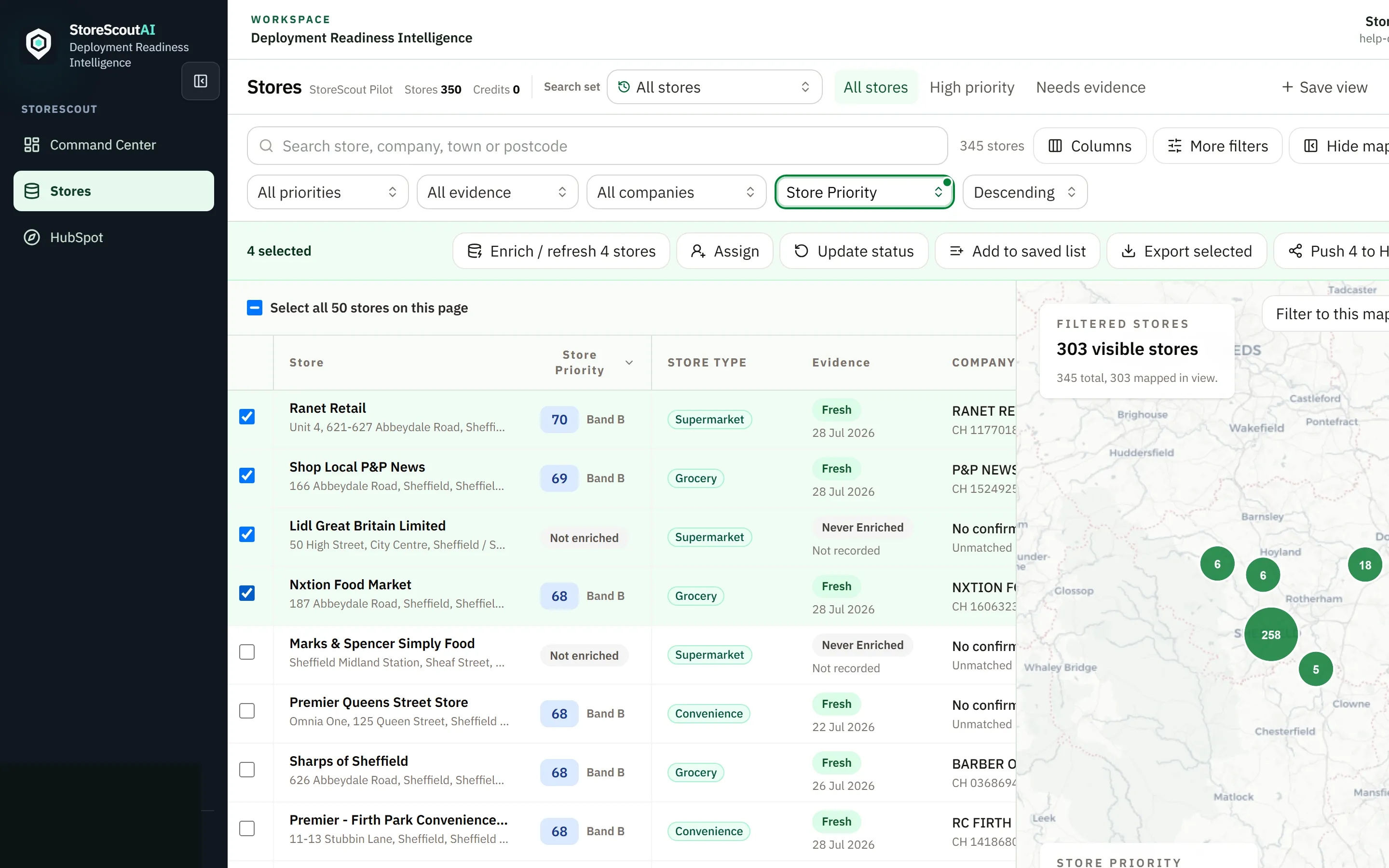
What the operation banner shows
Section titled “What the operation banner shows”| State | Meaning |
|---|---|
| Running / progress | Work is in flight — percentages may be determinate once real work units exist, or an honest pulse while settling |
| Completed | Evidence should refresh on affected rows; re-open a profile if figures look cached |
| Failed | Note the store set and time; retry once or report a problem |
| Cancel | Discovery (Find stores) can cancel mid-run; enrichment cancel behaviour follows on-screen controls |
There is no separate day-to-day “Jobs” page required for normal pilot work. Background progress lives in the Stores operation banner.
What you should expect
Section titled “What you should expect”- Not every field fills for every store — absence of data is itself a signal.
- Priority bands appear or update after successful enrichment.
- Large selections take longer; coordinate so two people do not enrich the same set twice.
Credits
Section titled “Credits”Enrichment consumes credits or usage allowance when metering is on. See Credits and usage. The UI should warn or block when balance or role does not allow the run.
Good habits
Section titled “Good habits”- Filter first, then select, then enrich.
- Wait for the banner to finish before exporting that shortlist.
- If a store stays on Failed refresh, capture store id and time for support.
- Admins: check user credit allocations if analysts report blocks.
What this guide does not cover
Section titled “What this guide does not cover”Internal provider configuration, pipeline operator steps, and scoring model details are out of scope for this public help centre.